
If no ticket comes out of the printer, it's usually the network, settings or assignment. Go through the steps in order.
How to tell that a ticket is missing
- Roter Balken in der Kasse: Konnte ein Bon nicht gedruckt werden, erscheint oben in Verkauf, Tischplan und Bestellungen ein roter Balken mit Ton. Er bleibt, bis alles gedruckt ist. Tippst du darauf, druckt die Kasse alles Offene sofort nach.
- Kitchen display without connection: The POS also shows this with the red bar.
- Mitteilung aufs Handy: Schalte unter Einstellungen → Benachrichtigungen das Ereignis „Druck an der Kasse fehlgeschlagen“ ein. Dann bekommst du Bescheid, auch wenn du nicht an der Kasse stehst.
- Nothing gets lost: Open print jobs stay saved even after the app restarts, and the app keeps retrying them. If a ticket arrives more than a minute late, it shows "REPRINT" and the time of the original ticket at the top so the kitchen can place it correctly.
1. Fehlermeldung in der Kassen-App ansehen
Open More → Back office and look at “Print jobs”. A red entry saying “unreachable” means the POS can't reach the printer. The POS automatically retries every 60 seconds. With “Resend failed” you immediately print everything outstanding.
2. Check printer
- Is the printer switched on, closed and loaded with paper?
- Is it on the same network (Wi-Fi or cable) as the POS?
- Is the network light on the printer lit? Restart it once.
3. Test print
In the POS app's back office, each printer has a “Test print” button under devices. In the dashboard, you'll find the same under Hardware → Printers via the print icon in the row. If the app reports “unreachable”, the address is probably wrong.
4. Check settings in the dashboard
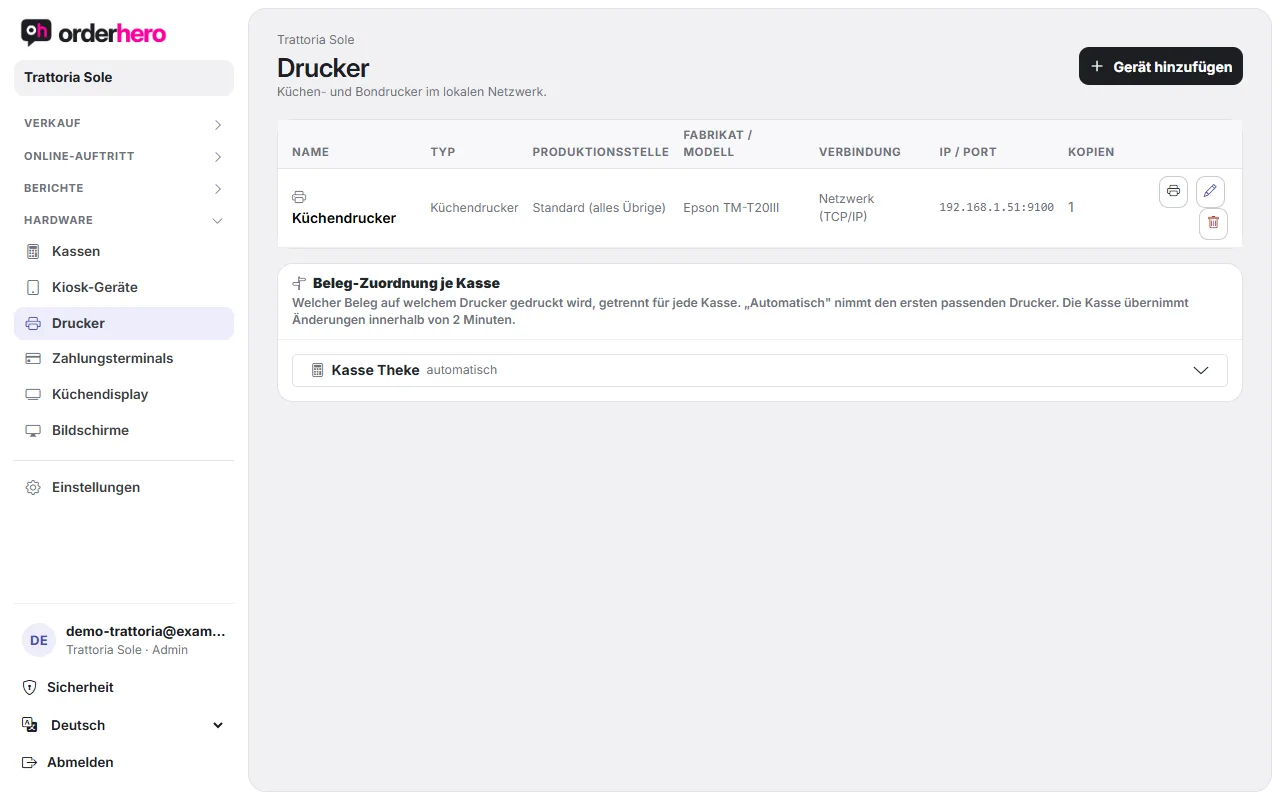
Öffne Hardware → Drucker und kontrolliere:
- IP address / hostname and port match the printer.
- Brand matches the device (Epson, Star, Bixolon, Sunmi, Other). The brand determines the print protocol.
- Connection type is correct (network, built-in Sunmi or serial).
- The printer's IP address hasn't changed. It's best to assign a fixed address in the router.
5. Is the receipt printing on the wrong printer?
- Küchenbon: Prüfe die Produktionsstelle des Druckers. Ein Küchendrucker ohne Auswahl ist der Standard-Küchendrucker und druckt alles, was keine andere Produktionsstelle übernimmt. Hake für die Theke nur die Getränke-Kategorien an.
- Beleg-Zuordnung je Kasse: Prüfe, welcher Drucker für welche Belegart gewählt ist. „Automatisch“ nimmt den ersten passenden Drucker. Zuordnen lassen sich nur Netzwerkdrucker. Die Kasse übernimmt Änderungen innerhalb von 2 Minuten.
6. Cash drawer won't open
Die Kassenlade öffnet über den Drucker, der bei „Kassenlade (Öffnungsimpuls)“ zugeordnet ist. Prüfe diese Zuordnung und das Kabel zwischen Lade und Drucker.
Get help
If nothing helps, email support at service@orderhero.net. Include the printer (brand, model), the IP address you entered and the message from the print jobs.