
You create all POS users in the dashboard. They appear as tiles on the lock screen of the POS app and sign in there.
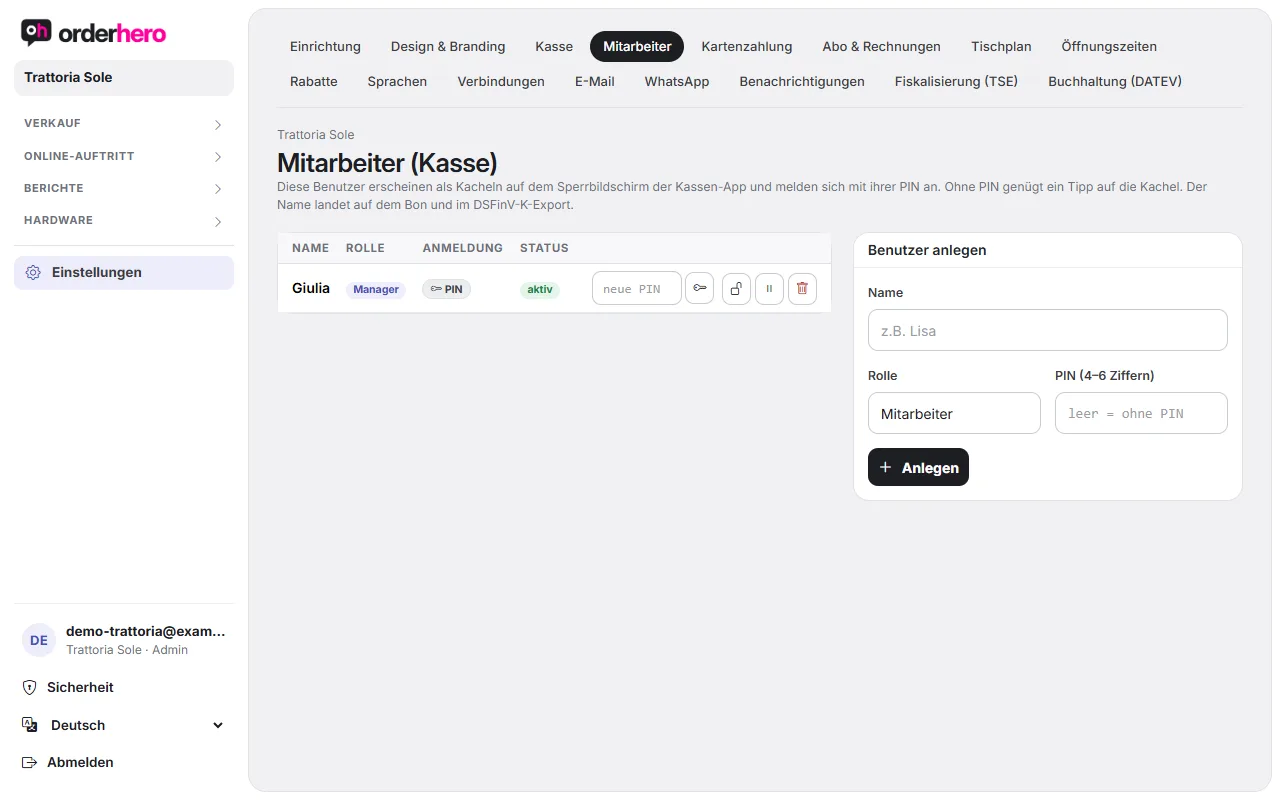
Create user
- Open Settings → Staff.
- On the right, under "Create user", enter the name.
- Wähle die Rolle: Mitarbeiter oder Manager.
- Set a PIN with 4 to 6 digits or leave the field empty.
- Tap “Create”.
The name later appears on the receipt and in the DSFinV-K export.
Roles
- Staff: Takes payments and serves. Everyone only sees what they're allowed to.
- Manager: Can also void receipts and close the shift. Create at least one manager with a PIN before you get started.
Login with and without PIN
- Mit PIN: Der Mitarbeiter tippt auf seine Kachel und gibt die PIN ein.
- Without PIN: One tap on the tile is enough. This is convenient but doesn't protect against unauthorized use. You should always set a PIN for managers.
In der Liste steht pro Benutzer, ob er mit PIN oder ohne PIN arbeitet und ob er aktiv ist.
Manage users
In der Zeile eines Benutzers findest du Symbole:
- Key (set PIN): Sets or changes the PIN. It must be 4 to 6 digits long.
- Offenes Schloss (PIN entfernen): Danach genügt ein Tipp auf die Kachel. Das Symbol erscheint nur bei Benutzern mit PIN.
- Pause or Play: Deactivates or activates the user.
- Trash: Deletes the user.
Forgot PIN
Reset the PIN in the dashboard using the key icon. You can't view an existing PIN.
Offline
Ist das Gerät kurz ohne Internet, funktioniert die Anmeldung mit dem zuletzt geladenen Benutzerstand weiter.