
Mit Stückzahl und Verfügbarkeit steuerst du, was Gäste noch bestellen können. Die Einstellung gilt überall: Kasse, Kiosk, Online-Shop, QR am Tisch, Menüboards und Speisekarte.
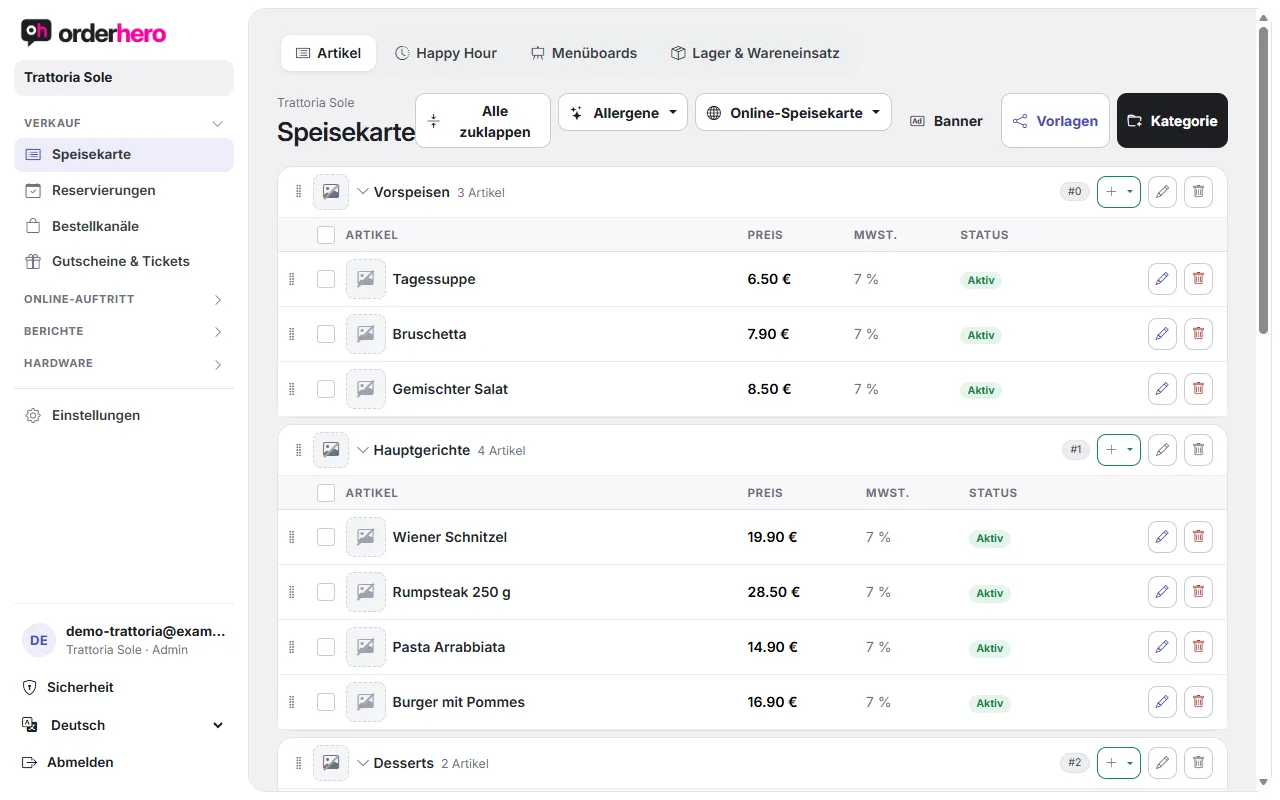
Mark items as sold out
- Open Menu.
- Check the affected items in the category.
- Tap "deactivate" (note: "Mark selected as unavailable (sold out)").
In the list, the item shows the red "Sold out" label. To reset it, open the item and set "Available" again.
You can also edit a single item directly: In the "General" tab you control "Visible" and "Available".
Stückzahl festlegen
Für Artikel mit begrenzter Menge, zum Beispiel Tagesgerichte:
- Open the item and go to the “Quantity” field.
- Trage die Anzahl ein. Leer bedeutet unbegrenzt.
Every sale is deducted from the quantity. At 0, the item is sold out everywhere. On the menu, the item shows “x left”.
Refill automatically every day
Enter a value in the "Refill every morning to" field. At 4 a.m., orderhero resets the quantity to this value. This suits daily specials offered in the same quantity every day.
More options
- Archivieren: Der Artikel verschwindet aus Kiosk und Kasse, bleibt aber erhalten. Nutze das für saisonale Artikel.
- Offer in: You can set which channels an item is offered in (POS, kiosk, online shop, delivery services, online menu & website, Google). For example, this way you don't offer leftovers of the day on Google.
- Menu boards: Sold-out items are crossed out or hidden, depending on the board's settings.
Note
Die Kassen-App holt Änderungen der Speisekarte automatisch ab. Mit „Jetzt aktualisieren“ im Backoffice der Kasse geht es sofort.