
Mit Happy Hour senkst du Preise zu bestimmten Zeiten. Mit Pfand buchst du Flaschen und Becher automatisch mit. Beides richtest du in der Speisekarte ein.
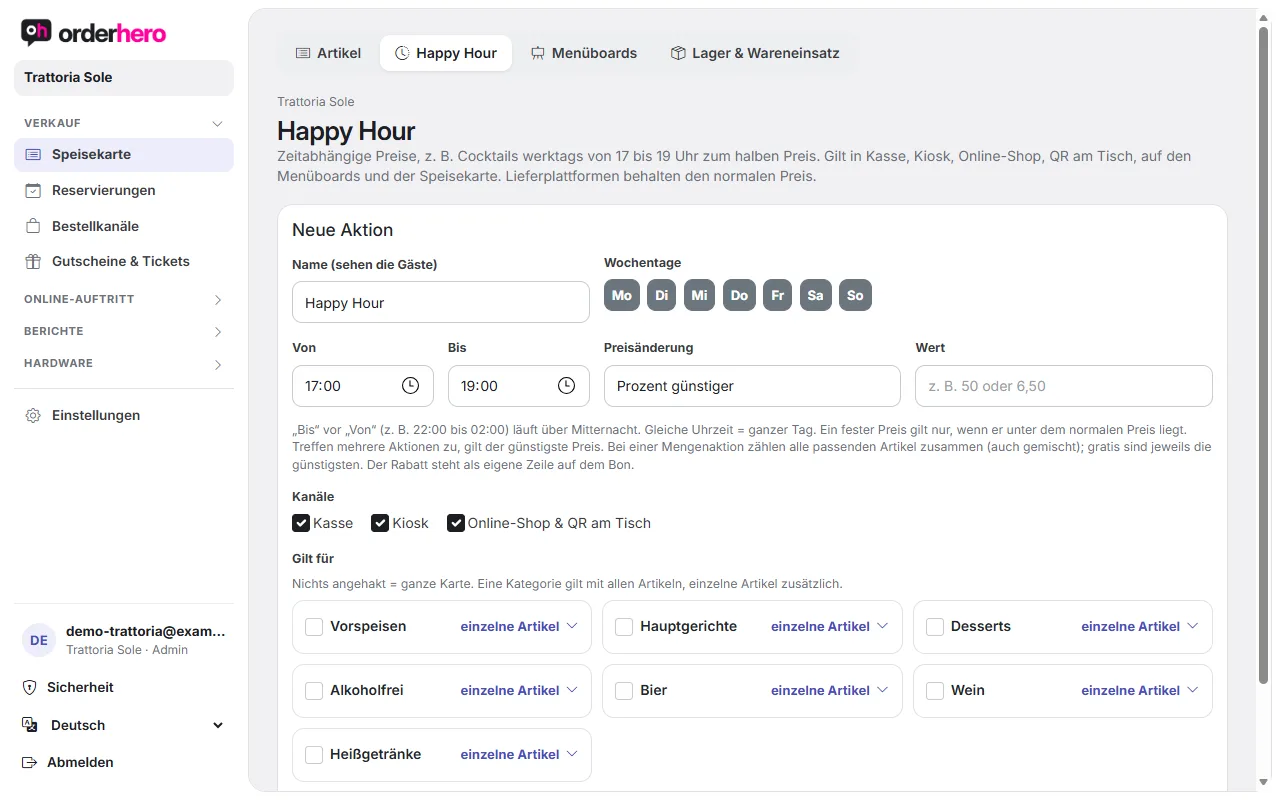
Create happy hour
- Open the menu and switch to the "Happy Hour" tab.
- Enter a name under “New promotion”. Guests will see it.
- Choose the days of the week and the "From" and "To" times.
- Choose the price change: percent off, euro off, fixed price, or quantity deal (for example 3 for the price of 2). Enter the value.
- Check the channels: POS, kiosk, online shop & QR at the table.
- Under “Applies to”, choose categories or individual items. If nothing is checked, the promotion applies to the whole menu.
- Tap “Create promotion”.
In the list, you can edit, pause, and delete promotions.
Rules
- “To” before “From” (for example 22:00 to 02:00) runs past midnight. The same time means all day.
- A fixed price only applies if it's lower than the regular price.
- If several promotions apply, the lowest price is used.
- With a quantity deal, all matching items count together, even mixed. The cheapest ones are free. The discount appears as its own line on the receipt.
- Prices apply at the POS, kiosk, online shop, QR at the table, on menu boards and on the menu. Delivery platforms keep the regular price.
Set up deposits
Set up deposit as a regular item (for example “Bottle deposit” at €0.25).
- Open this item and check “This item is a deposit”.
- Assign the deposit to the items. For an entire category, choose the matching deposit under “Edit category” → “Deposit for all items” (for example for all bottled drinks).
- For an individual item, you can override this. There you'll find "Like category", "No deposit" or a specific deposit ("book automatically").
The deposit is automatically added in the same quantity in POS, shop and QR ordering, using the item's tax rate.
Refund deposit
In the POS app, select Actions → “Refund deposit”. Select the deposit and enter the quantity. The deposit appears as a negative amount on the receipt. If nothing more is added, pay out the amount in cash with “Pay”. A separate receipt is created.