
The shift is your business day at the POS. You open it with the float and close it with a cash count. This generates the Z report.
The shift status is stored on the server and applies to all registers in your business.
Open shift
- Melde dich an der Kasse an. Ist noch keine Schicht offen, fragt die App „Schicht öffnen?“. Tippe auf „Schicht öffnen“ (mit „Später“ überspringst du es).
- Alternativ tippst du auf dem Sperrbildschirm auf „Schicht öffnen“ oder im Backoffice auf „Schicht öffnen (Wechselgeld einlegen)“.
- Enter the opening cash float in euros and confirm with "Open".
The cash drawer opens so you can put in the change.
Close shift
Only a manager can close the shift. Tap “Close shift” (lock screen) or, in the back office, “Close shift (cash count + Z)”.
Geschlossen wird nur, wenn:
- keine offene Bestellung mehr existiert. Kassiere offene Bons oder storniere sie vorher.
- no one else is logged in at any other POS. The app shows you the names and devices. Log these users out there.
Then enter the counted cash amount in the drawer and tap "Close". If the shift wasn't open, the app first asks for the opening float.
The app then shows the Z report (Z-Bericht) with number, receipts, voids, revenue, and cash and non-cash. In the cash count you see expected (float plus cash takings plus cash in and out), actual and the difference (“Cash balanced”, surplus or shortage). orderhero automatically books a difference as a cash difference via the TSE; it appears in the Z report, in the DSFinV-K and in the DATEV export.
Cash in and cash out
Cash that goes into or out of the drawer without a sale is recorded in the back office of the POS app with "Cash in/out (cash without sale)". This way the cash count in the evening adds up.
- In: Change from the bank, other deposit, owner's private deposit.
- Out: Cash payout (for example, a supermarket purchase), money to the bank or safe, owner's personal withdrawal.
Du gibst Betrag und Grund ein, die Lade öffnet sich und es kommt ein Bon zum Unterschreiben. Leg bei Barausgaben den Einkaufsbeleg dazu. Jede Bewegung wird über die TSE signiert, ist aber kein Umsatz. Privateinlagen und -entnahmen darf nur ein Manager buchen. Die Konten für den DATEV-Export stellst du unter Einstellungen → Buchhaltung (DATEV) ein.
Training mode
To practice with new staff, a manager starts “Training mode” in the back office of the POS app. While it's on, the POS shows an orange notice at the top. Direct sales are booked as training: no revenue, nothing goes to the kitchen or card terminal, and the receipt is marked “TRAINING” in large letters. Tables and vouchers are locked. Every training transaction is still logged via the TSE, as required by law. Turn the mode off in the back office before you take real payments again.
Automatic end-of-day closing
The Z report (Z-Abschluss) also runs automatically every night at 3:30 am and is signed via the TSE. Without a count, no cash count is created. Under Settings → Fiscalization (TSE), you can run a closing manually if needed (“Create closing”).
View reports
- Reports → Z reports: List of all closings with Z no., business day, transactions, gross and status.
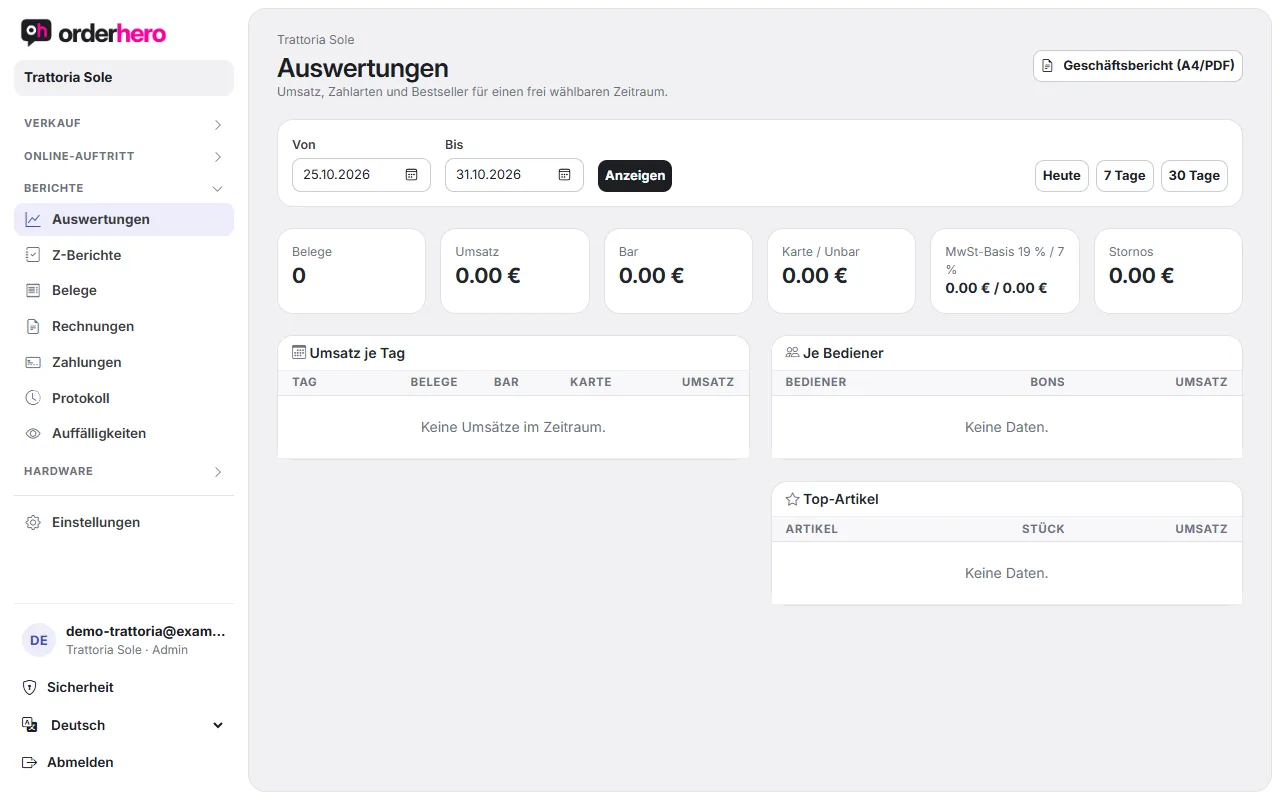
- Berichte → Auswertungen: Umsatz, Zahlarten und Bestseller für einen Zeitraum, dazu der Geschäftsbericht (A4/PDF) mit Kassensturz.
- X report: In the app, under Back office → “Print X report”, you print the day's running total without closing the shift.
Tip
Close the shift yourself in the evening. Only then is the counted cash amount included in the Z-report and you see a difference.