
This article shows the most important steps in the POS app during service.
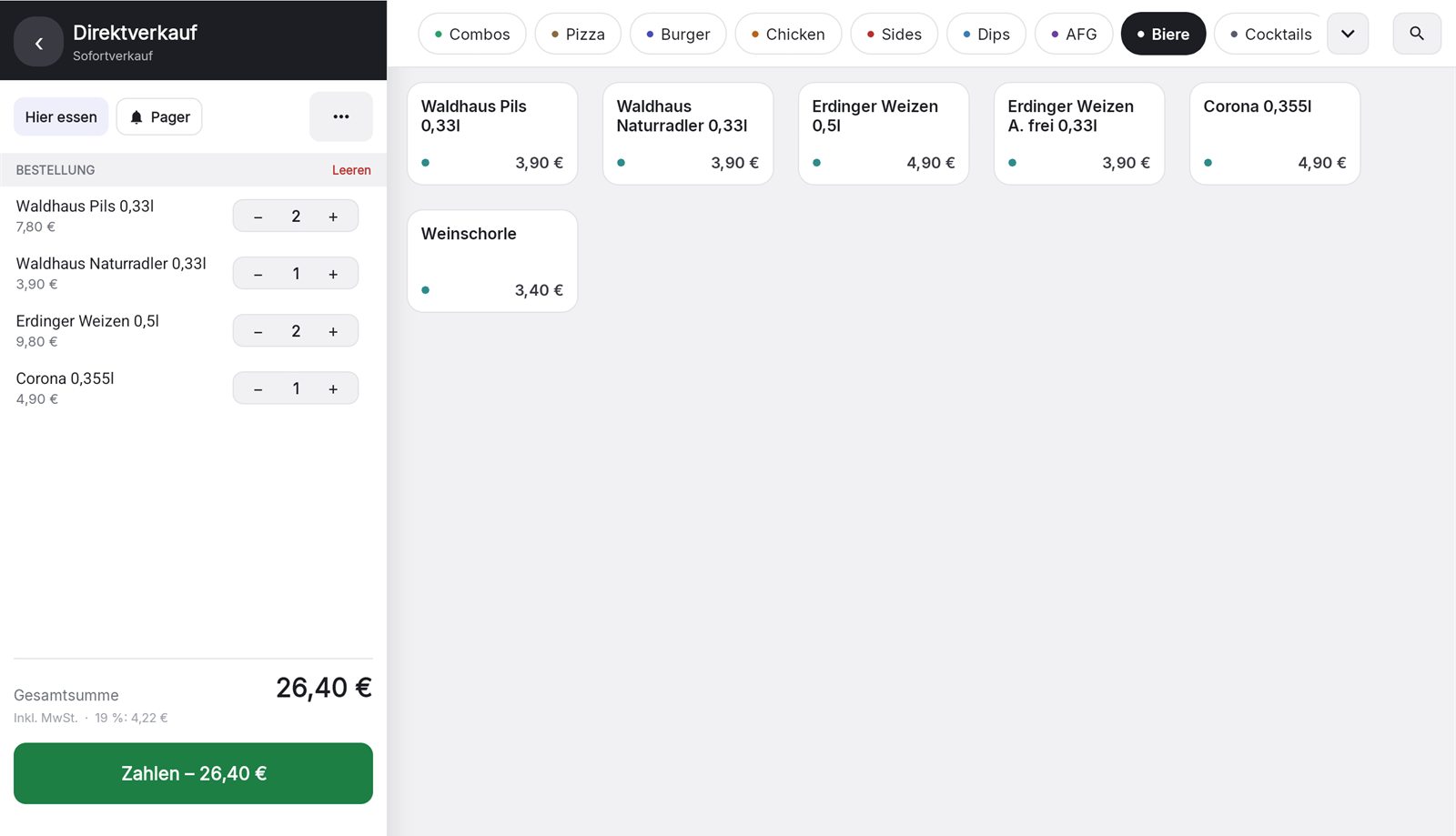
Take order
- Melde dich mit deiner PIN an (oder tippe auf deine Kachel).
- Choose a table in the floor plan. For the counter or takeaway, you start an order without a table.
- Tap the items. Use “Add note” to add special requests. You manage quick notes in the dashboard under Settings → POS.
- Send the order to the kitchen. Sent items appear under “Sent to kitchen”.
Courses
With “Select course” you define which course an item belongs to (No course, Course 1 to Course 4). This way, starters and main courses go to the kitchen separately. You can also change the course later: tap a sent item and select “Change course”.
Discount, miscellaneous item and more
- Rabatt auf den Bon: Alle aktiven Rabatte, die du im Dashboard unter Einstellungen → Rabatte angelegt hast, stehen zum Antippen bereit. Ein Code ist dafür nicht nötig.
- Actions: Here you'll find “Miscellaneous item”, “Check in ticket” and, depending on your setup, “Sell voucher”, “Check voucher” and “Deposit return”.
Pay
- Tippe auf „Zahlen“.
- Choose the payment method: cash, card, or a custom payment method you've set up. You can also choose “Redeem voucher” (type the code or scan the QR). A partial amount is possible.
- Bei Bar gibst du den Betrag unter „Gegeben“ ein, die App zeigt das Rückgeld. Trinkgeld lässt sich ebenfalls eintragen.
- After payment, the POS shows the amount in large green text. If something goes wrong, the screen turns red.
Splitting and partial payment
- At the table, you pay individual items in the payment dialog with “Partial payment”. With “Split equally” you divide the bill into equal shares.
- For orders without a table, “Split bill” is available under the actions.
Positionen und Belege stornieren
- Gesendete Position: Tippe sie an und wähle „Position stornieren“ (oder „Auf anderen Tisch verschieben“). Die Küche bekommt einen Storno-Bon.
- Paid receipt: Open the receipt in the “Receipts” tab. Only managers can void. The options are “Partial refund (items)”, “Void receipt” and “Reopen (void + open)”. Voiding creates a counter-receipt signed by the TSE and prints a void slip.
All voids, discounts and price changes are saved in the log (Dashboard: Reports → Log).
When the internet goes down
Die Kasse kassiert weiter. Siehe „Kasse ist offline“.