
With the Marketing module, you create posts, reels and stories in your business's style and publish them on Instagram, Facebook and your Google Business Profile.
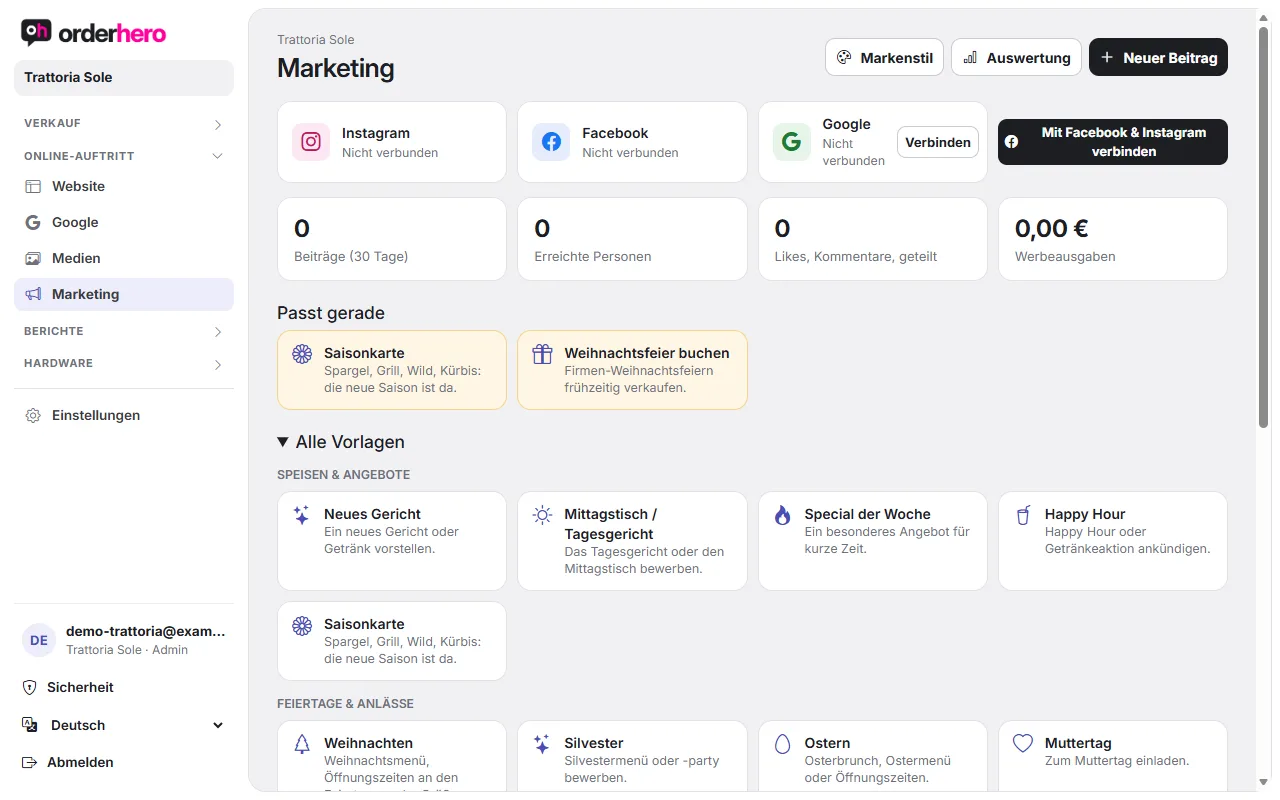
Open it under Online presence → Marketing.
Connect channels
- Instagram and Facebook: Tap "Connect with Facebook & Instagram" and sign in. If several Facebook Pages belong to your account, orderhero asks "Which Facebook Page belongs to …?". Select it with "Choose this one". Use "Disconnect Facebook/Instagram" to remove the connection.
- Google: Verbinde dein Google-Unternehmensprofil unter Online-Auftritt → Google. Dort hält orderhero außerdem automatisch den Button „Tisch reservieren“, „Online bestellen“, Speisekarte mit Preisen und Allergenen sowie Öffnungszeiten (inklusive Feiertagen und Urlaub) aktuell. Änderungen gehen innerhalb einer halben Stunde zu Google, Google zeigt sie nach eigener Prüfung an. Auf der Google-Seite findest du außerdem die Einstellung „Direkt in Google buchen“ („Reservieren mit Google“). Sie braucht die Freigabe über ein Google-Partnerprogramm und ist nicht für alle Betriebe verfügbar.
Define brand style
Tap "Brand style". Set your primary color, accent color, style, font, corners (Rounded or Square) and logo once. This way guests recognize your posts right away. It's best to upload the logo as a PNG with a transparent background. Without your own logo, orderhero uses the one from Design & Branding.
Beitrag erstellen
- Tap "New post" and choose a template. Under "Fits now" you'll see suggestions, and under "All templates" the rest.
- Angaben: Fülle die Felder der Vorlage aus. Gerichte kannst du aus der Speisekarte einfügen, Öffnungszeiten übernehmen.
- Format, photo or video: Upload a photo or video, or pick one from the media library or the menu. A carousel has up to 10 images. Videos work best in portrait format (9:16), 3 to 90 seconds, as MP4.
- Design: Choose a brand-style design and a variant. For this post you can change the style and animation. With animation, the post is published as a short video.
- Text: Tap "Suggest text" and choose the tone: Casual, Upscale and formal, Short and witty, or Warm and friendly. For stories, the text doesn't appear below the image; it stays only as a note.
- Publish: Choose the channels. Use "View preview" to check the post. Then tap "Publish now", "Schedule" or "Save as draft".
If no channel is connected yet, you can already save the post as a draft.
Manage contributions
The list shows status (Draft, Scheduled, Publishing, Published, Partial, Failed), time, text and the number of people reached. You can copy or delete posts and view published posts directly on the channel.
Report
Under "Analytics" you can see published posts, reach, interactions (likes, comments, shares, saves) and spend, also per post. Instagram and Facebook figures are updated every six hours; "Refresh metrics" updates them immediately. Meta delivers some metrics only after a few hours. Google doesn't report reach for posts.