
Under Reports in the navigation you'll find all the numbers for your business. Each tab answers a different question.
Reports
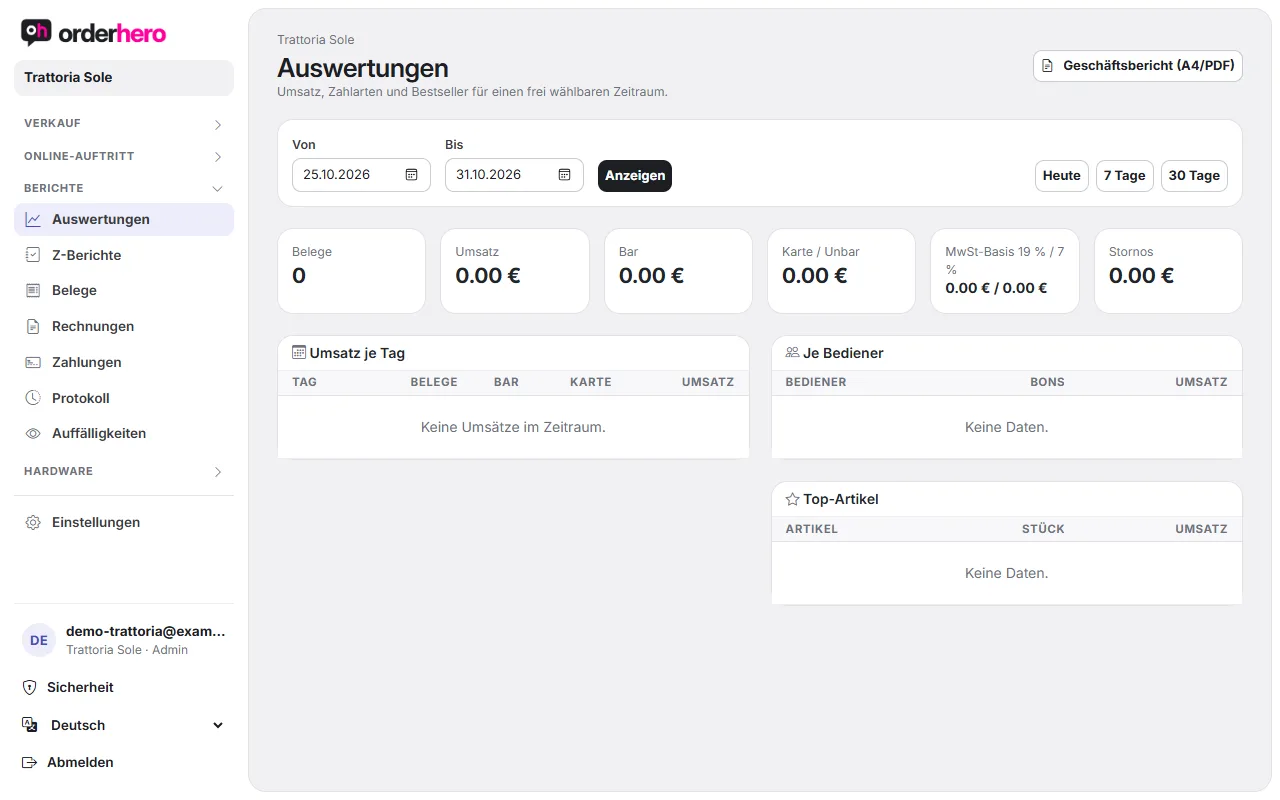
Sales, payment methods, and bestsellers for any period you choose. Select From and To or the quick picks “Today”, “7 days”, “30 days”, and tap “Show”.
- Key figures: receipts, revenue, cash, card / cashless, VAT base 19% / 7% and voids.
- Vouchers at the POS: the sale doesn't count as revenue, the redemption is included in revenue.
- Tables: revenue per day, revenue per server and top items.
With “Business report (A4/PDF)”, you create a daily report to print. It includes sales by product group, revenue by payment method, VAT report, sales per staff member, voids, and the cash count (opening balance, expected, actual, difference). The totals come from the TSE-signed journal. Minor rounding differences are possible.
Z-reports
The daily closings with Z no., business day, transactions, gross and status. They are created automatically at 3:30 am, signed via the TSE, or when the shift is closed. See “Open shift, close shift and Z report”.
Receipts
All POS and kiosk receipts of a day from the fiscal journal. Choose the day and tap "Show". The table shows time, source, reference, amount, payment method and TSE status. Voids are marked. Click to open the receipt. There you'll find "Print", "PDF", "By email" and "Invoice to company".
Invoices
Rechnungen auf Firmen (E-Rechnung). Siehe „Rechnung auf Firma ausstellen (E-Rechnung)“.
Payments
Alle Kartenzahlungen über Stripe aus Kasse, Kiosk, Online-Shop, QR-Bezahlen, Gutscheinen und Reservierungen. Du siehst Umsatz, Erstattungen, Gebühren und Netto und kannst Zahlungen mit „Erstatten“ ganz oder teilweise zurückgeben. Es werden die neuesten 500 Zahlungen gezeigt. Wähle für ältere einen kürzeren Zeitraum.
Log
Wer hat wann was gemacht: Stornos, Rabatte, Preisänderungen, Abschlüsse und mehr. Wähle den Tag und optional eine Aktion. Die Tabelle zeigt Zeit, Benutzer, Aktion, Details und Betrag.
Anomalies
Voids, discounts and reopened checks per server. See "Anomalies report".
Weitere Berichte
- The DSFinV-K export for tax audits is under Settings → Fiscalization (TSE).
- You can find the DATEV export for accounting under Settings → Accounting (DATEV).
- Under Settings → Email, you can have a daily business report sent automatically to an address. It's sent at night after the automatic Z-report closing.