
Two-factor login and passkeys protect your dashboard account. You set up both on the "Security" page. You'll find it at the bottom of the navigation.
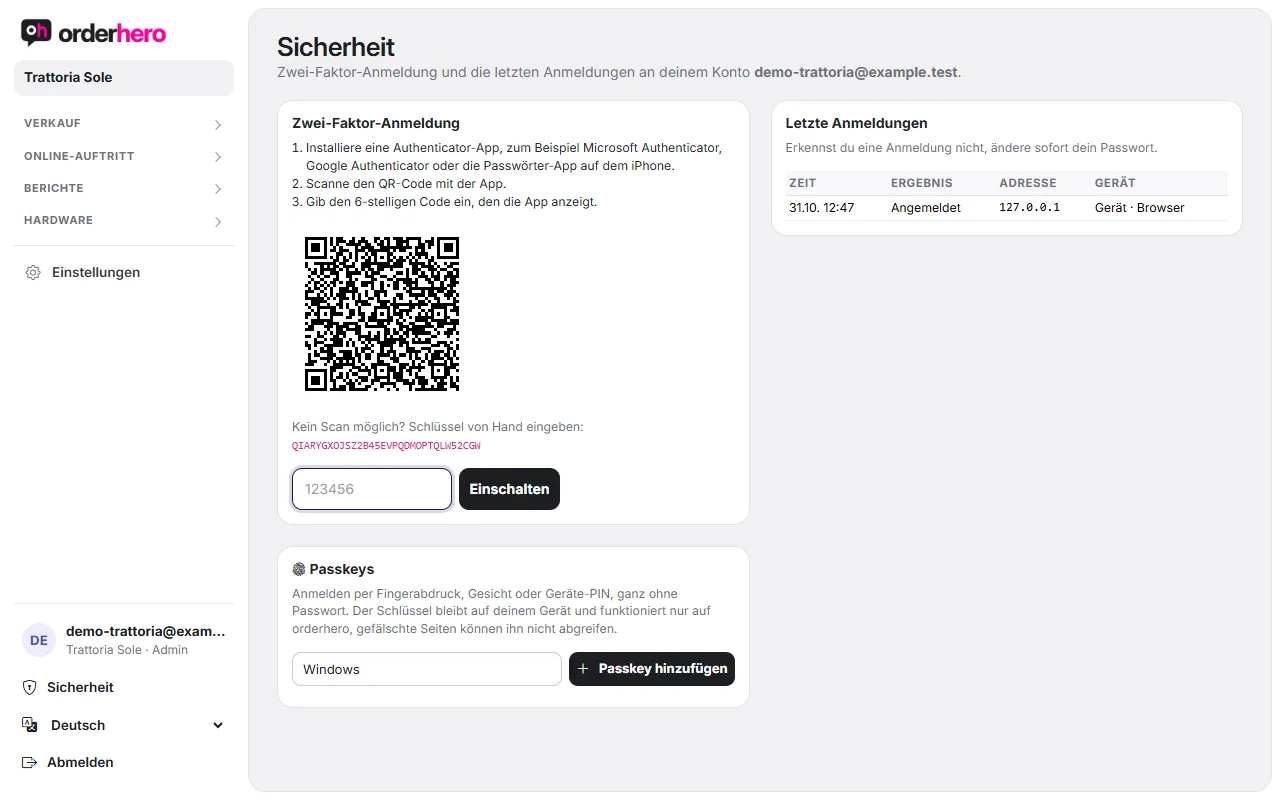
Turn on two-factor login
- Install an authenticator app, for example Microsoft Authenticator, Google Authenticator or the Passwords app on iPhone.
- Open Security and scan the QR code with the app. Can't scan? Enter the displayed key manually.
- Gib den 6-stelligen Code ein, den die App anzeigt, und tippe auf „Einschalten“.
After that, orderhero also asks for the code from the app at every login. To set this up, type the code under "Code" and tap "Confirm".
Recovery codes
Direkt nach dem Einschalten siehst du „Deine Wiederherstellungscodes“. Jeder Code funktioniert genau einmal, falls du dein Handy nicht zur Hand hast. Speichere sie sicher, zum Beispiel im Passwort-Manager. Sie werden nur dieses eine Mal angezeigt.
When logging in, enter a recovery code instead of the app code ("No access to the app?"). On the Security page, you can see how many codes are left. Use "New recovery codes" to generate new ones. Use "Turn off" to deactivate two-factor login.
Super admins: Two-factor login is mandatory for super admins because they can see all locations.
Passkeys
With a passkey you log in using fingerprint, face or device PIN, with no password at all. The key stays on your device and only works on orderhero. Fake websites can't steal it.
- Melde dich mit Code aus der Authenticator-App oder mit einem Passkey an. Nur dann kannst du Passkeys hinzufügen.
- Öffne Sicherheit und tippe bei „Passkeys“ auf „Passkey hinzufügen“.
- Bestätige mit Fingerabdruck, Gesicht oder Geräte-PIN.
The list shows when a passkey was created and last used. Use “Remove” to delete it. If your browser doesn't support passkeys, a notice appears.
Change password
Tap your name in the navigation at the bottom (“Account & change password”). Enter your current password and the new one twice, then tap “Change password”.
Forgot password
Tap “Forgot password” on the login page. Enter your email address or username and tap “Request link”. We'll send you a link to set a new password. Check your spam folder too.
Recent logins
On the Security page you can see the latest logins with time, result, address and device. If you don't recognize a login, change your password immediately.