
You'll receive new orders, reservations and requests as a notification on your phone or computer. You choose for each device what comes through. Notifications arrive even when the dashboard is closed.
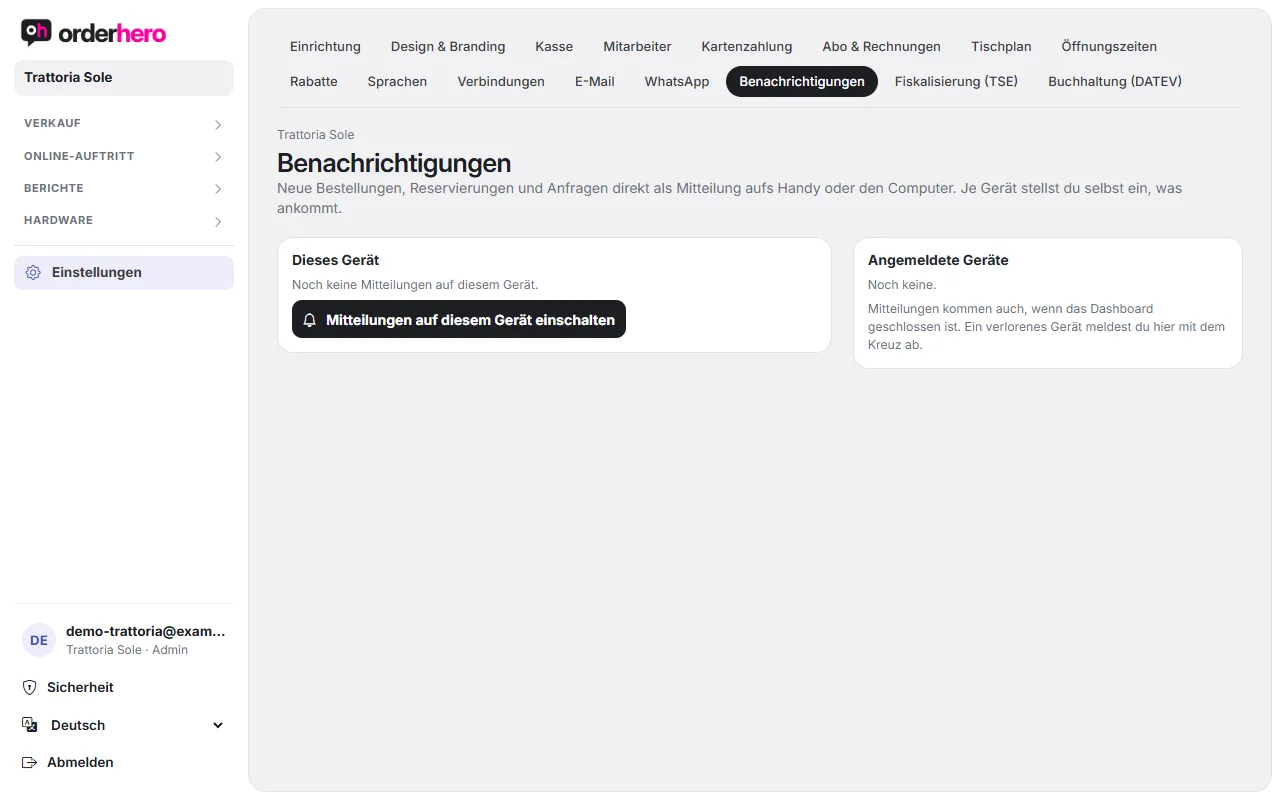
Open Settings → Notifications.
Which events there are
Neue Online-Bestellung, Bestellung am Tisch (QR-Code), neue oder stornierte Reservierung, Anfrage über die Website, Gutschein online verkauft und Druck an der Kasse fehlgeschlagen. Das letzte ist wichtig, damit kein Küchenbon unbemerkt verloren geht.
Turn on notifications on this device
- Open the dashboard on the device that should receive the notifications.
- Tap “Turn on notifications on this device”.
- Erlaube die Mitteilungen, wenn der Browser fragt.
- Under “What should arrive on this device?”, select the events you want.
- Use “Send test message” to check that everything works.
Mit „Auf diesem Gerät ausschalten“ stoppst du die Mitteilungen wieder.
iPhone und iPad
On iPhone and iPad, notifications only work if the dashboard is added to the Home Screen as an app:
- Open the dashboard in Safari.
- Tippe auf „Teilen“ und dann auf „Zum Home-Bildschirm“.
- Launch orderhero from the home screen.
- Turn on notifications there as described above.
If it says "Notifications blocked"
Notifications are blocked for this page in your browser. Allow them in your browser or system settings and reload the page. If it says “This browser can't receive notifications”, use a different browser or, on iPhone and iPad, go through the home screen.
Signed-in devices
The “Registered devices” list shows all devices with notifications. The current one is marked. You can sign out a lost device here with the cross.
Note
Die Einrichtungs-Checkliste zählt Benachrichtigungen als optionalen Punkt. Er gilt als erledigt, sobald mindestens ein Gerät angemeldet ist.