
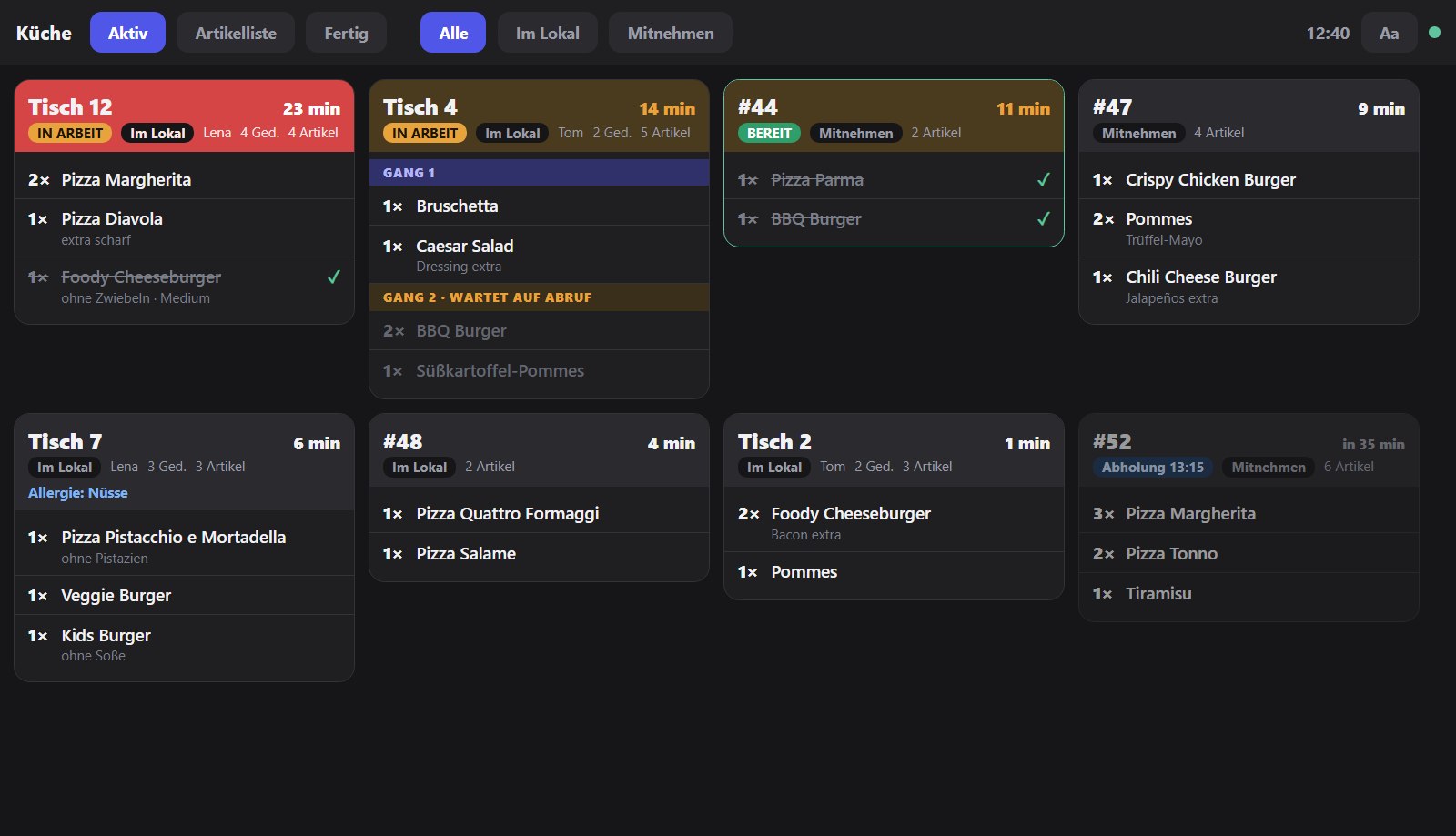
The kitchen display shows orders digitally in the kitchen and at the bar. Each station runs in the browser of a screen or tablet. The kitchen display is a module.
Create station
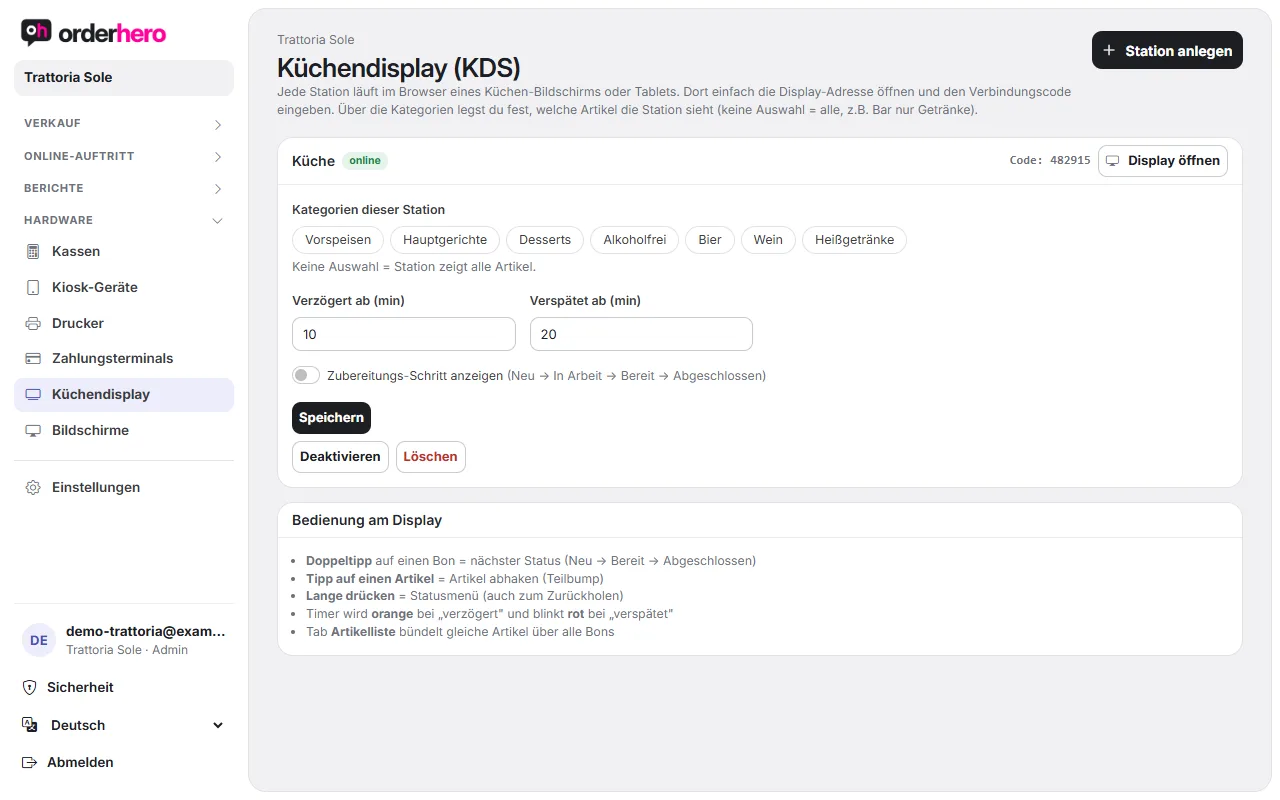
- Öffne im Dashboard Hardware → Küchendisplay.
- Tap “Create station” and enter a name (for example “Kitchen” or “Bar”).
- Set when tickets count as delayed (minutes) and late (minutes).
- Wähle die Kategorien, die die Station sehen soll. Keine Auswahl bedeutet: Die Station zeigt alle Artikel. Die Bar zeigt nur Getränke, wenn du nur diese Kategorien wählst.
- Tap “Create”.
For each station, you can change the categories, the times, and the “Show preparation step” option (New → In progress → Ready → Completed) later. Use “Delete” to remove the station.
Connect screen
- Öffne bei der Station „Display öffnen“ auf dem Küchen-Bildschirm. Der Browser genügt.
- Enter the connection code shown at the station ("Code: …").
Any screen with a browser can become a kitchen display.
Server at display
- Doppeltipp auf einen Bon: nächster Status (Neu → Bereit → Abgeschlossen).
- Tipp auf einen Artikel: Artikel abhaken (Teilbump).
- Long press: Status menu, also for bringing back.
- Timer: turns orange when “delayed” and flashes red when “overdue”.
- Reiter Artikelliste: bündelt gleiche Artikel über alle Bons.
Which orders appear?
Orders from POS, kiosk, online shop, QR at the table and delivery services all end up on the same display. At each station you only see the selected categories.
Notes
- “Done” on the kitchen display is automatically reported to the platform for delivery service orders.
- If the kitchen display isn't shown, the module hasn't been added to your plan yet. See "Subscription, plans and modules".