
In Germany, an electronic POS needs a technical security system (TSE) and must be reported to the tax office. orderhero uses a cloud TSE from fiskaly (fiskaly SIGN DE).
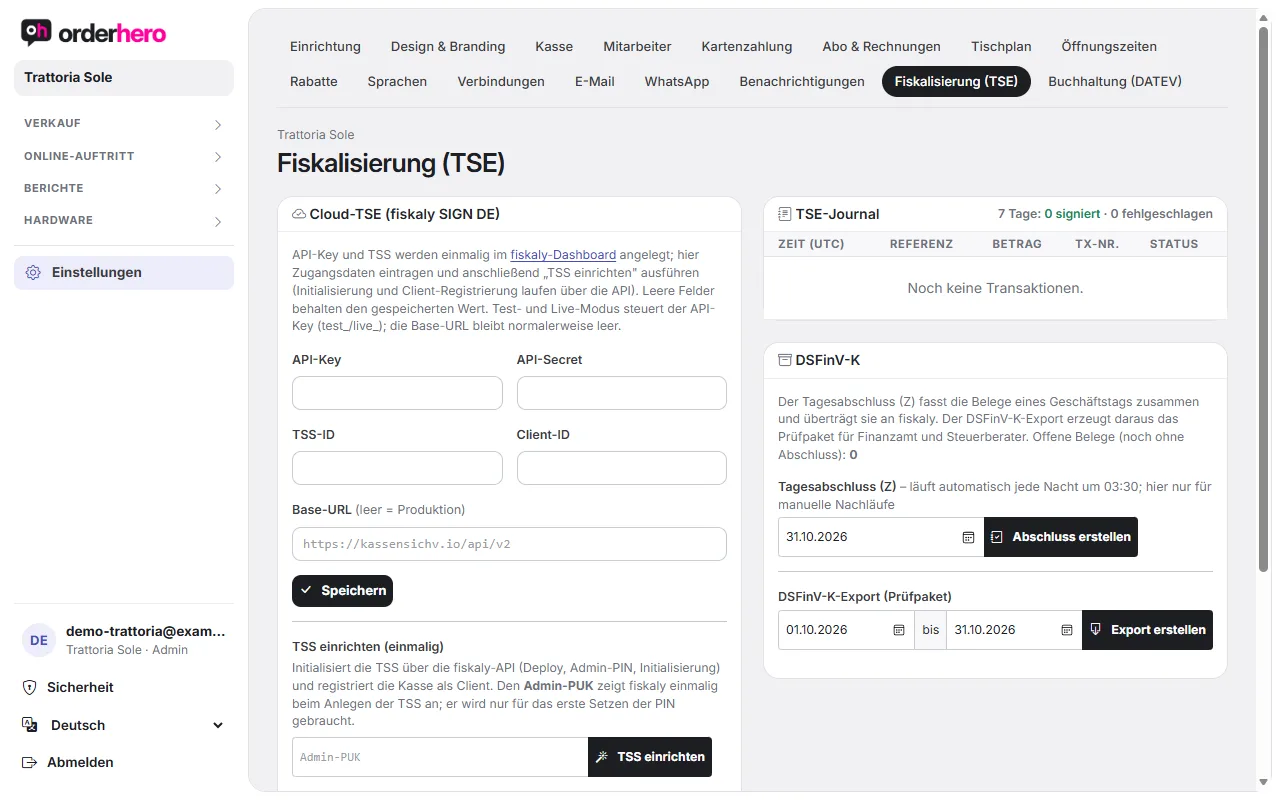
Set up TSE
The TSE (technical security system) is mandatory under the German Cash Register Security Ordinance (Kassensicherungsverordnung). orderhero sets it up with your plan. While you're in test mode, the POS doesn't sign: receipts are test receipts. Live mode is unlocked as soon as plan and TSE are in place. After that, the TSE signs every transaction.
You can see the status under Settings → Fiscalization (TSE):
- Test connection and Test signature check whether the integration works.
- Compliance checklist: TSE active, DSFinV-K, registration via "Mein ELSTER" and process documentation (with your tax advisor).
- TSE journal: For the last 7 days, it shows how many transactions were signed and how many failed, plus a table with time, reference, amount, TX no. and status.
All iPads, iPhones and kiosks are input devices of the same POS. The TSE ID applies per business.
End of day and tax audit
- Daily closing (Z): Runs automatically every night at 03:30. You can run it manually here ("Create closing"). It summarizes the receipts of a business day. "Open receipts" shows how many are still without a closing.
- DSFinV-K export (audit package): Choose the period (from … to), tap “Create export” and then download the package. It is intended for the tax office and tax advisor during an audit.
- TSE export (TAR file): Below it, you create the export of all TSE signatures for the same period. Once it is “ready”, download it with “Download TAR”.
Kassen-Nachschau: was der Prüfer bekommt
The tax office may show up for a cash register inspection (Kassen-Nachschau) without notice. Have these ready: the DSFinV-K export, the TSE export (TAR), the process documentation (Verfahrensdokumentation), and a test receipt on request. You create both exports on this page; it usually takes just a few minutes.
Process documentation (Verfahrensdokumentation)
Every POS needs process documentation (Verfahrensdokumentation): it describes how payments are handled in your business. Under Settings → Fiscalization (TSE), in the compliance checklist you'll find "Open process documentation". orderhero fills in devices, TSE, payment methods, roles and workflows from your settings. Add the details only you know (responsible persons, cash count, storage of paper receipts), save and print the document or save it as a PDF. Review it with your tax advisor and keep every version for 10 years.
Register POS with the tax office
Every electronic POS must be reported via “Mein ELSTER” within one month of commissioning (and decommissioning) (§ 146a para. 4 AO, German Fiscal Code). orderhero does not transmit anything to the tax office. You or your tax office handle the report.
- In the compliance checklist, open the item "Data sheet for registration", or in the setup checklist under "Register POS with the tax office", click the "Data sheet" button.
- Log in to Mein ELSTER (or have your tax office or accountant do it).
- Öffne das Formular „Mitteilung über elektronische Aufzeichnungssysteme (§146a Abs. 4 AO)“.
- Trage Betriebsstätte und je Kasse die Angaben aus dem Datenblatt ein, dazu die TSE, und sende ab.
- In the data sheet, use "Mark" to note the date under "Reported?". The checklist then ticks off the item. Use "Print" to create a copy.
What the data sheet says
- Location: Company, address and tax number. If the tax number is missing, enter it under Design & Branding.
- POS network: iPads, iPhones, and kiosks all share the same serial number. It also appears in the QR code on every receipt and in the DSFinV-K export. In ELSTER, you register each device with this serial number.
- Per POS: Type of system (tablet-based POS system, for iPhone possibly "app system"), software "orderhero Kasse", software manufacturer Capsoft GmbH, software version, hardware model and manufacturer, serial number, purchase date (as per the device invoice) and commissioning date.
- TSE: Type (cloud TSE fiskaly SIGN DE), TSE serial number and BSI certification ID.
When do you need to report again?
Kommt eine Kasse dazu oder fällt eine weg, zeigt die Checkliste, dass du binnen eines Monats neu melden musst (immer alle Kassen des Betriebs). Bei Fragen zur Einordnung hilft dein Steuerbüro.
If the TSE fails
See “TSE failure: What to do?”.